
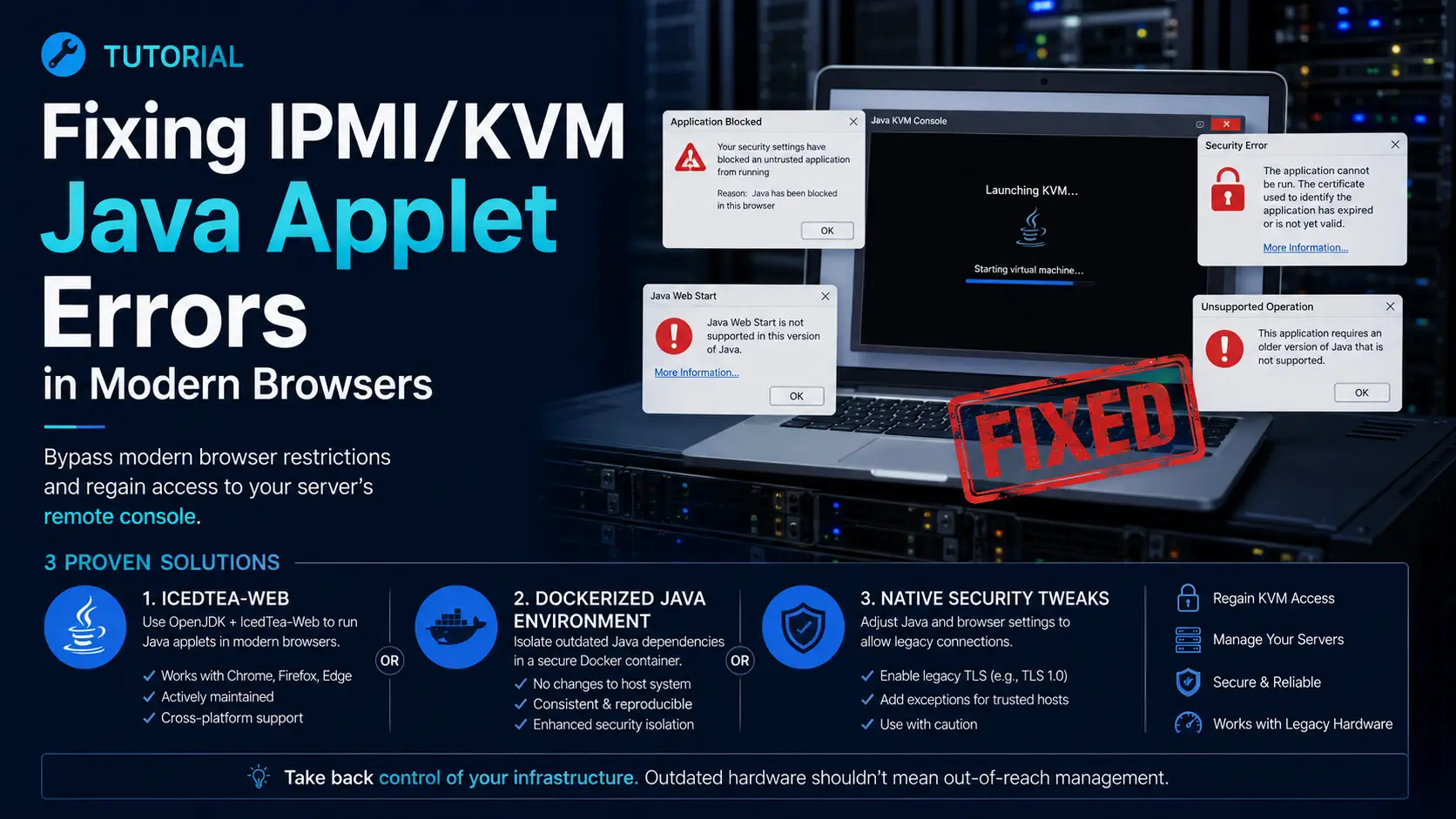
If you manage bare metal infrastructure, you inevitably encounter the "Java KVM" wall. You have a perfectly capable dedicated server—perhaps a slightly older Supermicro, Dell (iDRAC 6/7), or HP (iLO 3/4)—but when you click "Launch Console," your browser downloads a .jnlp file.
When you try to open it, you are met with a cascade of errors: your browser refuses to run it, modern Java says it's deprecated, or you are hit with a fatal TLS 1.0 or Unsigned Application security exception.
In 2015, major browsers killed NPAPI plugin support, effectively banning Java applets. Subsequently, Oracle removed Java Web Start from modern Java releases, and deprecated the outdated SSL/TLS standards these older servers rely on.
In this comprehensive tutorial, we will bypass these modern restrictions. You will learn three distinct methods to regain access to your server's out-of-band management console, ranging from native OS tweaks to secure, containerized isolation.
What You'll Learn
Understanding the Java Applet Blockade
Method 1: The Docker Containerized Browser Approach
Method 2: The Native OS Fix (Java 8 Downgrade)
Method 3: The Linux Route (IcedTea-Web)
Troubleshooting Common Connection Errors
Conclusion
Prerequisites
To follow along with this tutorial, you will need:
The IP address and login credentials for your IPMI/iDRAC/iLO management interface.
For Method 1: Docker installed on your local workstation.
For Method 2: Administrative privileges on your Windows or macOS machine to edit system-level Java security files.
For Method 3: A Linux desktop environment with sudo access.
Understanding the Java Applet Blockade
Before applying a fix, it helps to understand exactly what is broken. When you attempt to access an older IPMI console, you are fighting a battle on three fronts:
-
The Death of NPAPI: Browsers used to embed Java directly into web pages using the NPAPI architecture. For security reasons, Chrome, Firefox, and Edge entirely removed this architecture. You can no longer run Java inside the browser.
-
The Removal of Java Web Start: To compensate for the loss of NPAPI, server vendors relied on downloading .jnlp (Java Network Launch Protocol) files, which opened in a desktop application called Java Web Start. However, starting with Java 11, Oracle completely removed Web Start. Modern Java simply doesn't know what to do with a .jnlp file.
-
Deprecated Cryptography: Even if you install an older version of Java (like Java 8), you will likely get a "Connection Error" or "Application Blocked" pop-up. This is because old IPMI firmware uses TLS 1.0, TLS 1.1, MD5, or RC4 cryptography. Even legacy Java 8 has been patched in recent years to strictly block these outdated ciphers.
To regain access, we must either use a time-capsule environment (Method 1), heavily modify our local Java security parameters (Method 2), or use an open-source launcher designed for legacy compatibility (Method 3).
Method 1: The Docker "Containerized Browser" Approach (Recommended)
This is the cleanest, safest, and most reliable method. Instead of installing outdated, insecure software directly onto your daily workstation, we will spin up a Docker container.
This container holds an old Linux environment, an old version of Firefox, and an old version of Java. It exposes this environment to you via a secure, modern HTML5 web interface (noVNC). When you are done, you simply stop the container, leaving your host machine perfectly clean.
Step 1: Install Docker
If you do not have Docker Desktop installed on your workstation, download and install it from docker.com. Ensure the Docker engine is running.
Step 2: Run the IPMI-KVM Docker Image
Open your terminal (or Command Prompt/PowerShell) and run the following command. We are using a popular, open-source community image built specifically for this purpose:
docker run -d -p 5800:5800 -p 5900:5900 --name ipmi-kvm solarkennedy/ipmi-kvm-docker
-
Note: There are several great images for this, including jlesage/baseimage-gui adaptations, but solarkennedy/ipmi-kvm-docker provides a highly stripped-down X11+Java experience.
Step 3: Access the HTML5 Interface
Open your modern, primary web browser (Chrome, Edge, Safari) and navigate to http://localhost:5800. You will be greeted by a virtual Linux desktop running directly in your browser tab.
Step 4: Launch the KVM
Inside this virtual browser, navigate to your server's IPMI IP address, log in, and click to download the .jnlp file. Because this container is purpose-built with Java 8 and relaxed security protocols, when you click the .jnlp file, the Java KVM will open seamlessly inside the browser window.
When you are finished managing your server, simply stop and remove the container:
docker stop ipmi-kvm
docker rm ipmi-kvm
Method 2: The Native OS Fix (Java 8 Downgrade & Security Edit)
If you cannot use Docker and need to run the IPMI console natively on your Windows or macOS machine, you must install an older Java Runtime Environment (JRE) and manually hack its security configurations.
Step 1: Install Java 8 (JRE)
Uninstall any modern versions of Java (Java 11, 17, 21) from your system to prevent file association conflicts.
Download Java 8 (Offline Installer) from the Oracle archive or use an open-source build like Adoptium/Eclipse Temurin (ensure you select the JRE with Web Start/IcedTea support if using open source). The standard Oracle JRE 8 is the most reliable for proprietary IPMIs.
Install the software.
Step 2: Configure the Exception Site List
Java 8 blocks self-signed applets by default. You must explicitly whitelist your server's IP.
Open the Configure Java app (Java Control Panel) on your OS.
Navigate to the Security tab.
Ensure the security level is set to High (not Very High).
Click Edit Site List...
Add your IPMI URL exactly as you access it (e.g.,
https://192.168.1.50orhttp://10.0.0.5). Include both HTTP and HTTPS versions if you are unsure.Click OK and Apply.
Step 3: Hack the java.security File
Even with the site whitelisted, Java 8 will block the connection if the IPMI uses TLS 1.0 or weak ciphers. We must manually enable them.
On Windows: Navigate to C:\Program Files\Java\jre1.8.0_xxx\lib\security\ (or Program Files (x86) depending on your installation).
On macOS: Navigate to /Library/Internet Plug-Ins/JavaAppletPlugin.plugin/Contents/Home/lib/security/
Open the file named
java.securityin a text editor (you must open Notepad/TextEdit as an Administrator to save changes to this directory).Use Ctrl+F to search for
jdk.tls.disabledAlgorithms.You will see a line that looks something like this:
jdk.tls.disabledAlgorithms=SSLv3, TLSv1, TLSv1.1, RC4, DES, MD5withRSA, DH keySize < 1024, EC keySize < 1024, 3DES_EDE_CBC, anon, NULLDelete
TLSv1,TLSv1.1,RC4, andMD5withRSAfrom that comma-separated list.Search for
jdk.jar.disabledAlgorithms.You will see a line like:
jdk.jar.disabledAlgorithms=MD2, MD5, RSA keySize < 1024, DSA keySize < 1024Delete
MD5from the list.Save the file.
Step 4: Launch the JNLP
Log into your IPMI, download the launch.jnlp file, and double-click it. You will receive several aggressive security warnings asking if you are sure you want to run this unsigned, outdated application. Check the "I accept the risk" boxes and click Run. The KVM will now open.
Method 3: The Linux Route (IcedTea-Web)
If you are using a Linux workstation (Ubuntu, Fedora, Arch), the process is remarkably straightforward thanks to the open-source icedtea-web package, which provides a drop-in replacement for Java Web Start called javaws.
Step 1: Install IcedTea-Web
Open your terminal and install the required packages.
For Ubuntu/Debian:
sudo apt update
sudo apt install icedtea-netx default-jre -y
For Fedora/RHEL derivatives:
sudo dnf install icedtea-web -y
Step 2: Lower IcedTea Security Settings
By default, IcedTea will reject the self-signed certificates and weak MD5 signatures found on old IPMI modules. We need to tell it to allow unsigned apps.
Open the IcedTea control panel from your terminal:
itweb-settings
Navigate to the Security tab.
Check the box that says "Allow unsigned applets".
Under the Certificates tab, you may optionally need to import the self-signed certificate of your IPMI interface, though allowing unsigned applets usually bypasses this requirement.
Click Apply and close the settings.
Step 3: Execute the JNLP
Download the .jnlp file from your server's IPMI interface. Open your terminal, navigate to your Downloads folder, and execute the file using the javaws command:
javaws viewer.jnlp
(Note: Your file might be named launch.jnlp or kvm.jnlp depending on the vendor).
The Java console should launch. If it complains about a certificate mismatch, click "Run" to push through the warning.
Troubleshooting Common Connection Errors
Even with the correct Java environment, you may run into a few specific roadblocks when dealing with out-of-band management. Here is how to solve them.
Error: "Connection Refused" or "Network Error"
If the Java applet successfully loads its UI but fails to display the video feed, the issue is almost always port blocking.
IPMI web interfaces operate on ports 80 and 443. However, the actual Java KVM video feed usually operates on a different port. Supermicro typically uses port 5900 (VNC), while Dell iDRAC uses port 5900 or 5901.
Fix: Ensure that your local firewall, your VPN, and your corporate network allow outbound TCP traffic on port 5900.
Issue: Keyboard Mapping is Scrambled
When typing in the Java console, you may notice that symbols (like @, #, or |) output incorrectly, which makes logging in impossible. This occurs because the IPMI Java applet is interpreting your local keyboard layout differently than the server's OS.
Fix: Use the "Virtual Keyboard" or "Macros" menu at the top of the Java Applet window. These menus allow you to inject precise keystrokes directly into the server, bypassing your local OS keyboard layout entirely.
Issue: "Missing required Permissions manifest attribute"
If you applied Method 2 but still receive this error, it means the .jar file downloaded by the JNLP lacks modern security headers.
Fix: Ensure you have added the IPMI IP address to the Exception Site List in the Java Control Panel (Step 2 of Method 2). The Exception Site List forces Java to ignore missing manifest attributes. Ensure you added https:// if the IPMI uses SSL.
Conclusion
Managing legacy hardware shouldn't require maintaining a highly vulnerable, outdated computer under your desk. By utilizing Docker containers to isolate deprecated Java environments, or surgically modifying java.security files to allow necessary legacy ciphers, you can securely bypass modern browser restrictions.
Whenever possible, Method 1 (Docker) should be your go-to strategy. It keeps your primary workstation completely clean, immune to zero-day Java vulnerabilities, and ensures you will always have a working environment to manage your bare metal infrastructure, no matter what browsers decide to deprecate next.