
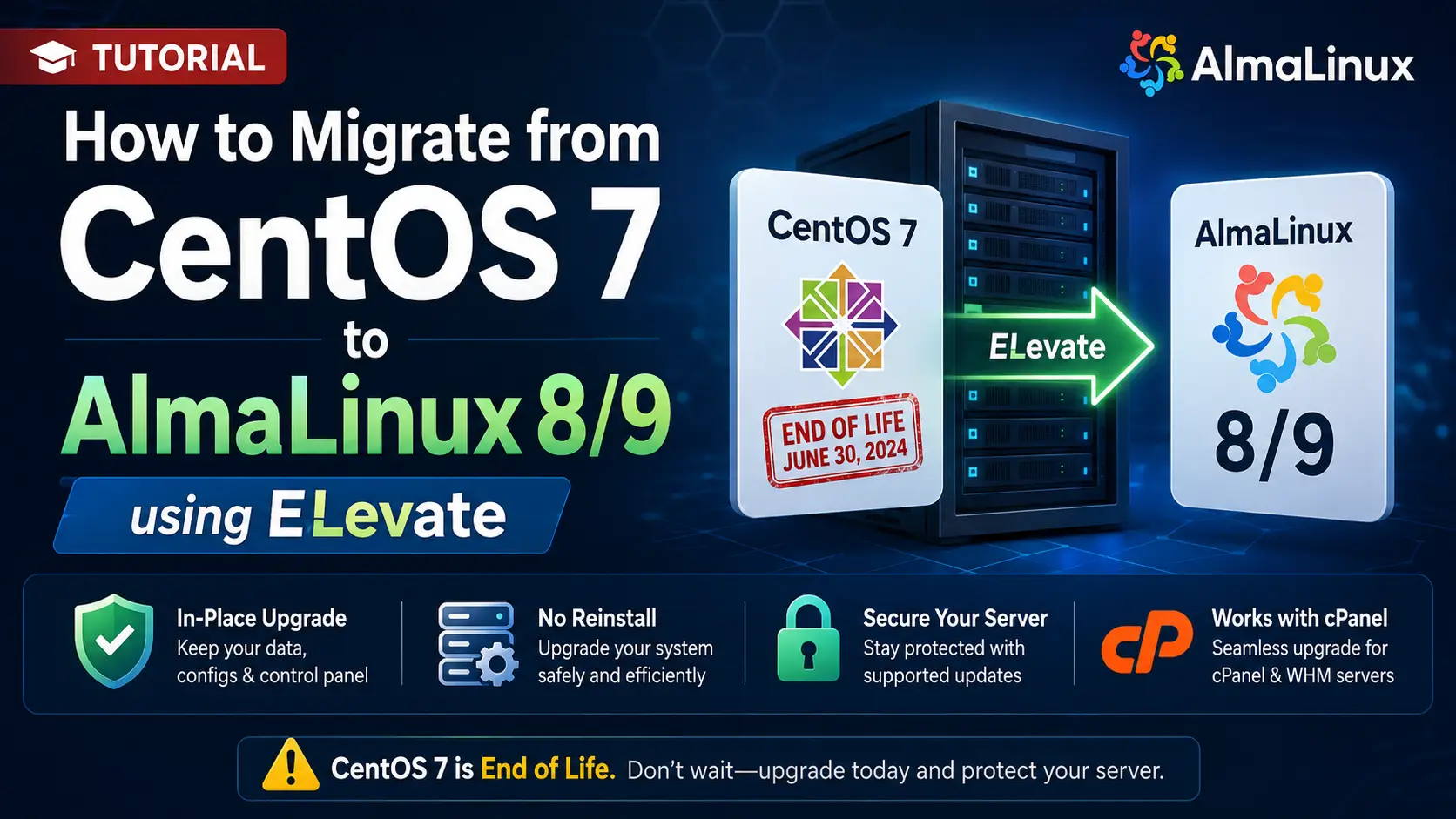
CentOS 7 reached its official End of Life (EOL) on June 30, 2024. If you are reading this in 2026, your server has been running without official security patches, vulnerability mitigations, or software updates for nearly two years.
I understand the hesitation. Touching a critical, legacy production server is terrifying. The fear of breaking a stable environment often paralyzes system administrators into inaction. However, running a deprecated OS exposed to the public internet is a ticking time bomb.
Fortunately, the AlmaLinux OS Foundation sponsors the ELevate project. This tool allows you to perform a safe, in-place upgrade from CentOS 7 directly to AlmaLinux 8 (and subsequently to AlmaLinux 9), preserving your data, configurations, and control panel setups without the need to format your drives and start from scratch.
What You'll Learn
The Reality of Late CentOS 7 Migrations
Pre-Flight Checks and System Backups
Updating Current CentOS 7 Packages
Installing the ELevate Tool
Running the Pre-Upgrade Checker (Leapp)
Resolving Common Pre-Upgrade Errors
Executing the In-Place Upgrade to AlmaLinux 8
Post-Upgrade Verification and Cleanup
Conclusion: Migrating to AlmaLinux 9
The Reality of Late CentOS 7 Migrations
Before we type a single command, we need to ground ourselves in reality. An in-place upgrade is a massive surgical operation on your server's kernel and package manager.
Important Architectural Note: You cannot jump directly from CentOS 7 to AlmaLinux 9. The underlying package architectures are too different. You must upgrade from CentOS 7 to AlmaLinux 8 first. Once stabilized on version 8, you can execute a second ELevate process to reach version 9.
Note for cPanel Users: If your server runs cPanel/WHM, do not use the standard ELevate commands below. cPanel provides a purpose-built wrapper script (
/scripts/elevate-cpanel) that handles the specialized cPanel repositories. The core concepts remain the same, but you must follow cPanel's specific documentation to avoid corrupting your control panel.
Pre-Flight Checks and System Backups
If the power fails or a rogue kernel module panics during the reboot phase of this upgrade, your server will not boot. You must have a rollback plan.
Virtual Machines: Take a full hypervisor-level snapshot.
Bare Metal Servers: Ensure you have an out-of-band management console (IPMI/KVM/iDRAC) available. Configure a full block-level backup using tools like R1Soft, Acronis, or a manual rsync of your
/var,/etc, and/homedirectories to a remote storage node.Disable Security Software: Temporarily disable aggressive firewalls or security suites (like Imunify360 or strict SELinux policies) that might falsely flag the massive package replacement as a system compromise.
Updating Current CentOS 7 Packages
The ELevate process requires your CentOS 7 system to be on the absolute latest available package versions for the EL7 architecture.
Because CentOS 7 is EOL, the standard mirror links are dead. You may need to point your repositories to the CentOS Vault if yum update fails.
First, attempt a standard update:
sudo yum update -y
If it succeeds, reboot your server to ensure you are running the latest installed kernel:
sudo reboot
Installing the ELevate Tool
ELevate relies on a tool called leapp, originally developed by Red Hat for RHEL upgrades. We need to install the ELevate repository and the specific AlmaLinux migration data.
1. Install the ELevate Release Package
sudo yum install -y http://repo.almalinux.org/elevate/elevate-release-latest-el7.noarch.rpm
2. Install Leapp and the AlmaLinux Data
sudo yum install -y leapp-upgrade leapp-data-almalinux
Running the Pre-Upgrade Checker (Leapp)
This is the most critical phase. We are going to ask Leapp to simulate the upgrade. It will comb through your installed packages, kernel modules, and repositories to determine if the upgrade will safely complete.
Run the pre-upgrade command:
sudo leapp preupgrade
This process will take a few minutes. It will almost certainly fail on the first try. This is normal and expected. Leapp acts as a strict gatekeeper, refusing to proceed if it detects anything that might brick your server.
When it finishes, it will generate a report at /var/log/leapp/leapp-report.txt.
Review the report to find your "Inhibitors" (blockers):
sudo cat /var/log/leapp/leapp-report.txt | grep -i inhibitor
Resolving Common Pre-Upgrade Errors
Legacy servers accumulate technical debt. Here are the most common inhibitors you will find in your leapp-report.txt and exactly how to solve them.
1. The pata_acpi Kernel Module Error
Leapp will halt if it detects the pata_acpi module, which is unsupported in EL8. The Fix: You must instruct Leapp to remove it during the upgrade.
sudo rmmod pata_acpi
echo pata_acpi | sudo tee -a /var/lib/leapp/el8userspace/etc/modprobe.d/pata_acpi.conf
2. Root Login Configuration
By default, EL8 handles SSH root logins differently. If your sshd_config doesn't explicitly allow root login, Leapp will assume you might lock yourself out. The Fix: Explicitly set root login to 'yes' (you can revert this to 'prohibit-password' or 'no' after the upgrade if you use SSH keys).
echo "PermitRootLogin yes" | sudo tee -a /etc/ssh/sshd_config
3. Unsupported Third-Party Repositories (EPEL, Remi)
If you have packages installed from EPEL or Remi (common for modern PHP versions on CentOS 7), Leapp may not know how to map them to AlmaLinux 8. The Fix: You must either remove the conflicting packages or temporarily disable the repositories.
sudo yum config-manager --disable epel
sudo yum config-manager --disable remi-php74
4. Multiple Network Interface Names
CentOS 7 used eth0, whereas AlmaLinux 8 prefers predictable interface names like ens192. The Fix: You can instruct Leapp to answer "True" to its internal prompt about migrating network names.
sudo leapp answer --section remove_pam_pkcs11_module_check.confirm=True
After addressing your specific inhibitors, run sudo leapp preupgrade again. Repeat this process until you see a green message stating: "The system is ready to be upgraded."
Executing the In-Place Upgrade to AlmaLinux 8
Once the pre-upgrade check passes flawlessly, you are ready for the point of no return.
Execute the upgrade command:
sudo leapp upgrade
This process will download all the necessary AlmaLinux 8 packages. It will not install them immediately; instead, it prepares a specialized "Upgrade RAM Disk".
Once the terminal tells you the upgrade is ready, reboot the server:
sudo reboot
What Happens During Reboot?
If you watch your server via an IPMI/KVM console, you will see a new entry in the GRUB boot menu called ELevate-Upgrade-Initramfs. The system will automatically boot into this environment.
Behind the scenes, the server is aggressively uninstalling CentOS 7 packages and writing AlmaLinux 8 packages. Do not interrupt this process. Depending on your server's disk speed (NVMe vs. HDD), this can take anywhere from 10 minutes to an hour.
The server will reboot one final time automatically when it is finished.
Post-Upgrade Verification and Cleanup
Log back into your server via SSH. The first thing you should do is verify your new operating system identity.
Check your OS release:
cat /etc/os-release
You should see AlmaLinux 8.x staring back at you.
Cleanup Tasks
-
Verify Services: Check that your critical services (Nginx, Apache, MySQL, PHP-FPM) are running.
bashsudo systemctl status nginx sudo systemctl status mysqld -
Re-enable Repositories: If you disabled EPEL or Remi, re-enable the EL8 versions of those repositories and update your packages.
bashsudo dnf install epel-release -y sudo dnf update -y -
Check IP Tables/Firewalld: AlmaLinux 8 uses nftables underneath firewalld. Ensure your previous iptables rules migrated successfully or reapply your firewall configurations.
The Next Step: Migrating to AlmaLinux 9 (Optional but Recommended)
Congratulations, your server is no longer running a deprecated OS! AlmaLinux 8 receives active security support until May 2029.
However, if you want to future-proof your bare-metal infrastructure until 2032, you can repeat this exact same process to move from AlmaLinux 8 to AlmaLinux 9.
The ELevate tool supports the 8 -> 9 migration flawlessly. You will simply follow the exact same steps: update your packages, install the ELevate release for EL8, run the leapp preupgrade checker, fix any new inhibitors (usually related to older crypto policies or deprecated Python 3.6 libraries), and execute the upgrade.
By utilizing the ELevate project, you have saved yourself dozens of hours of manual server provisioning and data migration, cleanly bridging the gap between legacy reliability and modern security.