
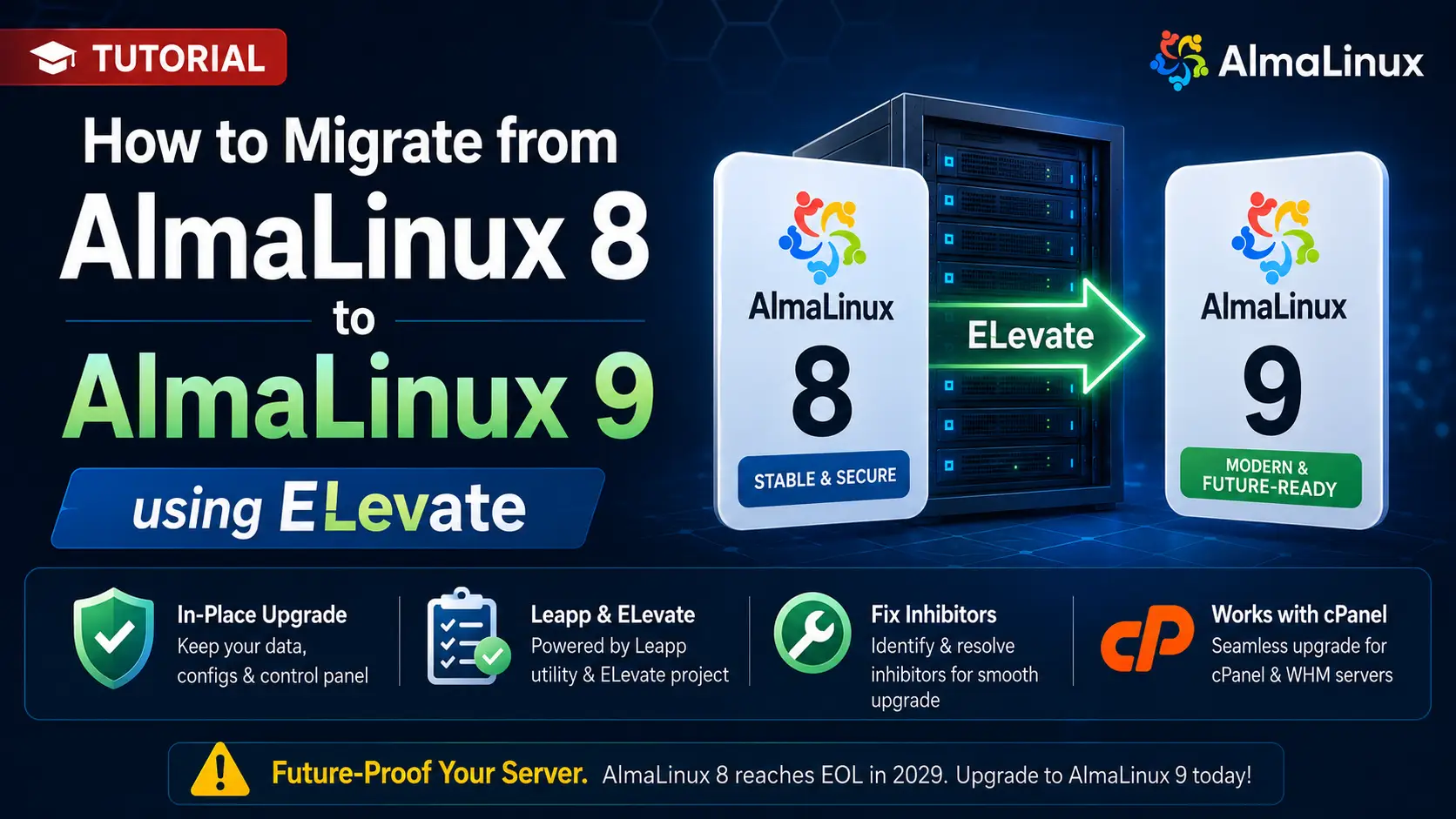
If you recently completed the migration from CentOS 7 to AlmaLinux 8, your server is officially safe from immediate End-of-Life deprecation. However, AlmaLinux 8 will reach its own EOL in 2029. To truly future-proof your infrastructure and take advantage of the modern kernel improvements, updated cryptography, and performance enhancements introduced in the RHEL 9 ecosystem, you should continue your journey to AlmaLinux 9.
Fortunately, performing an in-place upgrade from version 8 to 9 using the ELevate project is significantly smoother than the initial jump from 7 to 8.
In this comprehensive tutorial, we will walk through the exact steps to transition your server from AlmaLinux 8 to AlmaLinux 9, including how to clean up the messy leftover files from your previous CentOS 7 migration that will block this upgrade.
What You'll Learn
Crucial Pre-Flight Checks and Backups
Cleaning Up CentOS 7 & Old Leapp Leftovers
Installing the EL8 ELevate Packages
Running the Leapp Pre-Upgrade Check
Resolving Specific AlmaLinux 8 -> 9 Inhibitors
Executing the In-Place Upgrade
Post-Upgrade Verification
Crucial Pre-Flight Checks and Backups
Even though the 8-to-9 upgrade is generally highly stable, it replaces thousands of packages and the core Linux kernel.
Backups are Mandatory: Take a full hypervisor snapshot or ensure your bare-metal block-level backups (R1Soft, Acronis, or remote rsync) are verified and restorable.
Disable Security Software: Temporarily disable aggressive firewalls or security suites like Imunify360 or strict SELinux policies that might falsely flag the massive package replacement as a system compromise.
cPanel Warning: If you are running cPanel/WHM, do not run these commands natively. You must use the
/scripts/elevate-cpanelwrapper script, as cPanel manages its own strictly versioned repositories.
Ensure your current AlmaLinux 8 system is fully up to date:
sudo dnf update -y
sudo reboot
Cleaning Up CentOS 7 & Old Leapp Leftovers
If you used ELevate to get to AlmaLinux 8 from CentOS 7, your server still has the old leapp packages and configurations designed for that specific jump. If you do not remove them, the upgrade to AlmaLinux 9 will fail immediately.
1. Remove Excludes in DNF
During the previous upgrade, Leapp may have added exclusions to your package manager. Open /etc/dnf/dnf.conf and /etc/yum.conf in your preferred text editor:
sudo nano /etc/dnf/dnf.conf
Look for an exclude= line (e.g., exclude=python2-leapp,snactor,leapp...). Delete this line entirely.
2. Remove Old Leapp Packages
Find and remove the old migration utilities:
sudo rpm -e --nodeps leapp-upgrade-el7toel8 python2-leapp leapp-data-almalinux
-
Note: If
rpm -qa | grep leappreveals other leftover packages from the EL7 era, remove them as well.
3. Delete Temporary Migration Directories
Remove the old Python 3 temporary directory created by the previous upgrade:
sudo rm -rf /root/tmp_leapp_py3
Clean the package manager cache:
sudo dnf clean all
Installing the EL8 ELevate Packages
Now that the system is clean, we need to install the version of ELevate specifically designed for AlmaLinux 8 servers.
1. Install the Release Package
This command dynamically fetches the correct package for EL8:
sudo dnf install -y http://repo.almalinux.org/elevate/elevate-release-latest-el$(rpm --eval %rhel).noarch.rpm
2. Install the Leapp Upgrade Tool and Data
Next, install the core utility and the dataset that maps AlmaLinux 8 packages to their AlmaLinux 9 counterparts:
sudo dnf install -y leapp-upgrade leapp-data-almalinux
Running the Leapp Pre-Upgrade Check
Just like the previous migration, we must run a simulation. Leapp will analyze your current OS and determine if anything will catastrophically break during the transition.
sudo leapp preupgrade
This will take several minutes. It will almost certainly exit with a red failure message. This is normal. It has generated a report at /var/log/leapp/leapp-report.txt detailing the "Inhibitors" blocking the upgrade.
To view the strict blockers, run:
sudo cat /var/log/leapp/leapp-report.txt | grep -i inhibitor
Resolving Specific AlmaLinux 8 -> 9 Inhibitors
The leap to EL9 enforces stricter modern standards. Here are the most common blockers you will encounter and exactly how to fix them.
1. The Firewalld ZoneDrifting Error
AlmaLinux 9 completely drops support for the deprecated AllowZoneDrifting feature in Firewalld. Leapp will not proceed if it is enabled. The Fix: Use sed to automatically change yes to no in the configuration file:
sudo sed -i "s/^AllowZoneDrifting=.*/AllowZoneDrifting=no/" /etc/firewalld/firewalld.conf
2. The VDO (Virtual Data Optimizer) Confirmation
Leapp needs explicit confirmation regarding how you are handling VDO devices, as the kernel architecture for VDO changes in EL9. The Fix: Provide the answer to Leapp's internal prompt:
sudo leapp answer --section check_vdo.confirm=True
3. Legacy Network-Scripts Deprecation
In AlmaLinux 8, NetworkManager was the default, but legacy network-scripts (e.g., /etc/sysconfig/network-scripts/ifcfg-eth0) were still tolerated. In AlmaLinux 9, legacy network scripts are completely unsupported. The Fix: Ensure your network is fully managed by NetworkManager. If you have leftover scripts that are no longer used, you may need to delete them, or use the nmcli tool to convert them to native NetworkManager profiles before proceeding.
4. Root SSH Login Check
Similar to the EL7 upgrade, if you use password-based root logins, Leapp may flag this. The Fix: Explicitly allow it in your SSH configuration:
echo "PermitRootLogin yes" | sudo tee -a /etc/ssh/sshd_config
After applying these fixes, run sudo leapp preupgrade again until the report concludes with a green success message stating the system is ready to be upgraded.
Executing the In-Place Upgrade
Once the pre-upgrade is completely clear of inhibitors, you are ready to initiate the OS replacement.
Run the final upgrade command:
sudo leapp upgrade
This will download gigabytes of AlmaLinux 9 packages and prepare the specialized RAM disk. When the prompt returns, trigger the reboot:
sudo reboot
The Upgrade Process
If you are monitoring via IPMI or a KVM console, you will see the server boot into the ELevate-Upgrade-Initramfs GRUB entry. Do not touch or interrupt the server. It will aggressively strip out EL8 packages and install EL9.
Depending on your disk speed, this process will take between 15 and 45 minutes before rebooting automatically into your new OS.
Post-Upgrade Verification
Log back into your server via SSH. The login prompt should feel familiar, but let's verify the core identity of the machine.
Check the OS release:
cat /etc/os-release
You should proudly see AlmaLinux 9.x listed.
Final Verification Tasks
-
Check Leftover EL8 Packages: Ensure no orphaned packages are polluting the system.
bashrpm -qa | grep el8If a few non-critical packages remain, you can usually remove them manually or run
dnf autoremove. -
Verify Services: Check the status of your critical daemons (Nginx, Apache, MySQL/MariaDB, PHP-FPM) to ensure their configuration files survived the transition.
bashsudo systemctl status nginx -
Re-Enable SELinux: If you disabled SELinux prior to the upgrade, re-enable it and trigger a relabel on the next boot:
bashsudo touch /.autorelabel sudo reboot
By completing this final migration, your server is now running on a modern, highly secure enterprise Linux foundation that is supported well into the next decade.