
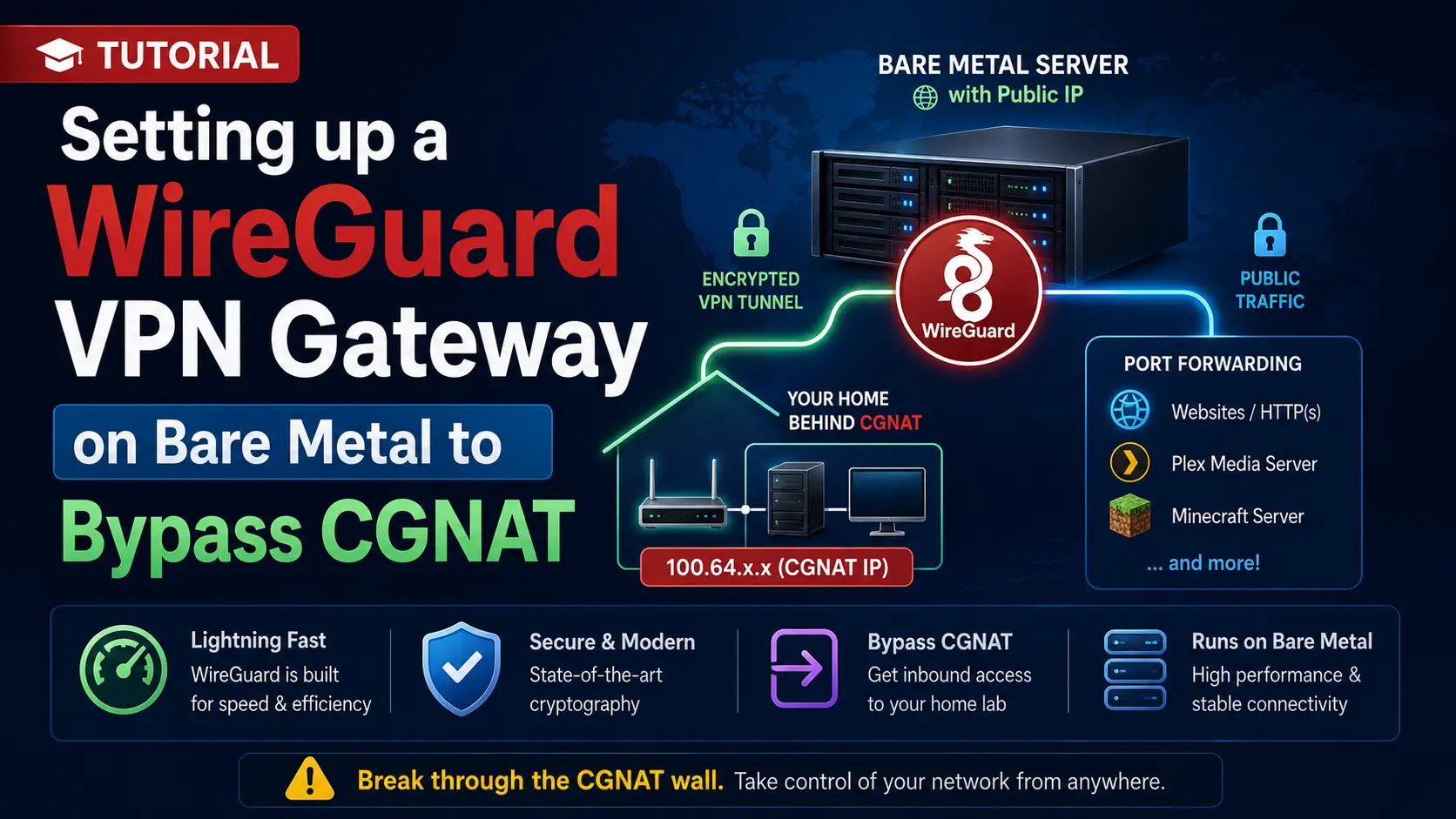
One of the most frustrating hurdles for modern home lab enthusiasts, self-hosters, and game server administrators is the widespread adoption of Carrier-Grade NAT (CGNAT). Because IPv4 addresses are exhausted worldwide, Internet Service Providers (ISPs) now place hundreds of residential customers behind a single shared public IP address.
If your home router's WAN IP starts with 100.64.x.x, or doesn't match the IP shown on sites like "What Is My IP," you are trapped behind CGNAT. Because you do not own a unique public IP, you cannot open ports. You cannot host a website, run a Plex server, or host a Minecraft server directly from your home connection.
The most robust, high-performance solution is to rent an affordable bare-metal dedicated server (or VPS) that comes with a static public IPv4 address, and use it as a WireGuard VPN Gateway. By bridging your home server to the dedicated server, you can punch a hole through the CGNAT wall and forward public traffic directly into your living room.
In this comprehensive tutorial, we will configure WireGuard—a modern, lightning-fast VPN protocol built directly into the Linux kernel—to bypass CGNAT effortlessly and securely.
What You'll Learn
Understanding the CGNAT Bypass Architecture
Installing WireGuard and Generating Keys
Configuring the Public Gateway (Dedicated Server)
Configuring the Local Node (Home Lab)
Enabling IP Forwarding and NAT on the Gateway
Bringing Up the Tunnels and Testing
Port Forwarding to the Home Lab
Understanding the CGNAT Bypass Architecture
WireGuard operates on a peer-to-peer concept rather than a strict client-server model, though we will configure them to act like a client and server to bypass your ISP's restrictions.
Here is how our architecture will function:
The Public Gateway (Dedicated Server): Has a true, static public IP (e.g., 203.0.113.5). We will assign it an internal private VPN IP of
10.0.0.1. It will listen for incoming encrypted WireGuard connections on UDP port 51820.The Local Node (Home Lab): Trapped behind your ISP's CGNAT. We will assign it an internal private VPN IP of
10.0.0.2.
Because CGNAT blocks all incoming connection attempts, the Public Gateway cannot reach out and initiate a connection to the Local Node. However, CGNAT allows outgoing connections. Therefore, the Local Node will reach out to the Public Gateway on port 51820.
Once that outgoing connection is established, WireGuard maintains the tunnel, allowing two-way traffic. We will then instruct the Gateway's firewall to grab public traffic (like HTTP requests on port 80) and forward them straight down that established tunnel.
Installing WireGuard and Generating Keys
We will be using Ubuntu 22.04 / 24.04 for both machines in this tutorial, but the commands are nearly identical for Debian or AlmaLinux.
Perform this step on BOTH the Public Gateway and the Local Node.
1. Install WireGuard
Update your package repository and install the WireGuard tools:
sudo apt update
sudo apt install wireguard -y
2. Generate Cryptographic Keys
WireGuard uses a simple, highly secure public/private key cryptography system (Curve25519) to authenticate peers. You must generate a key pair on both servers.
Navigate to the WireGuard directory and ensure strict directory permissions so unauthorized users cannot read your keys:
cd /etc/wireguard
sudo umask 077
Generate the private and public keys:
wg genkey | sudo tee privatekey | wg pubkey | sudo tee publickey
To view your newly generated keys, you can use the cat command:
cat privatekey
cat publickey
Note: Copy these keys into a temporary notepad on your local computer. You will need to paste the Public Node's public key into the Local Node's config, and vice versa.
Configuring the Public Gateway (Dedicated Server)
Log into your Public Gateway (the dedicated server). We need to create the main configuration file that will define the server's listening parameters and identify the home lab peer.
Create and edit a new file called wg0.conf:
sudo nano /etc/wireguard/wg0.conf
Paste the following configuration. Replace <GATEWAY_PRIVATE_KEY> with the contents of the privatekey file you generated on this specific machine, and <LOCAL_NODE_PUBLIC_KEY> with the publickey from your home server.
[Interface]
# The VPN IP address of this gateway
Address = 10.0.0.1/24
ListenPort = 51820
PrivateKey = <GATEWAY_PRIVATE_KEY>

# The Peer block defines the Home Lab server
[Peer]
PublicKey = <LOCAL_NODE_PUBLIC_KEY>
# We only want to route traffic destined for 10.0.0.2 to this specific peer
AllowedIPs = 10.0.0.2/32
Save and exit the file (Ctrl+O, Enter, Ctrl+X).
Configuring the Local Node (Home Lab)
Log into your Local Node (the home lab server trapped behind CGNAT). We must configure it to aggressively reach out to the dedicated server and keep the connection alive.
Create and edit its configuration file:
sudo nano /etc/wireguard/wg0.conf
Paste the following configuration. Replace <LOCAL_PRIVATE_KEY> with the private key of this home machine, <GATEWAY_PUBLIC_KEY> with the public key of your dedicated server, and <PUBLIC_GATEWAY_IP> with the actual public IPv4 address of your dedicated server.
[Interface]
# The VPN IP address of your home server
Address = 10.0.0.2/24
PrivateKey = <LOCAL_PRIVATE_KEY>

[Peer]
PublicKey = <GATEWAY_PUBLIC_KEY>
# Connect out to the public server's IP and WireGuard port
Endpoint = <PUBLIC_GATEWAY_IP>:51820
# Define what IPs are accessible through this tunnel
AllowedIPs = 10.0.0.1/32

# CRITICAL FOR CGNAT BYPASS
PersistentKeepalive = 25
The Magic of PersistentKeepalive
The PersistentKeepalive = 25 directive is the absolute secret to bypassing CGNAT. Because your home network's router and the ISP's CGNAT gateways aggressively close idle connections to save memory, the tunnel will drop if no data is sent for a few minutes.
This directive forces the home server to send an empty, encrypted ping every 25 seconds, keeping the NAT state table open indefinitely. Because the state remains open, the Public Gateway can always push traffic back into your home network whenever it needs to.
Enabling IP Forwarding and NAT on the Gateway
By default, Linux acts as a strict endpoint. It will not route packets arriving on the public network interface (e.g., eth0) over to the virtual WireGuard interface (wg0). We must tell the kernel to act as a router.
Perform this on the Public Gateway.
1. Enable IPv4 Forwarding
Open the sysctl configuration file:
sudo nano /etc/sysctl.conf
Find the following line and remove the # symbol to uncomment it:
net.ipv4.ip_forward=1
Apply the changes immediately without needing to reboot the server:
sudo sysctl -p
2. Configure Basic NAT (Masquerading)
We must ensure that traffic flowing through the VPN can reach the internet, and that the return packets know how to get back to the home lab. We will add PostUp and PostDown hooks to the Gateway's wg0.conf file.
First, determine your public network interface name (usually eth0, ens3, or enp3s0):
ip -br a
Edit your Gateway's /etc/wireguard/wg0.conf again and add these lines to the [Interface] block. Replace eth0 with your actual public interface name:
[Interface]
Address = 10.0.0.1/24
ListenPort = 51820
PrivateKey = <GATEWAY_PRIVATE_KEY>

# Enable NAT masquerading when the tunnel goes up
PostUp = iptables -A FORWARD -i wg0 -j ACCEPT; iptables -t nat -A POSTROUTING -o eth0 -j MASQUERADE
PostDown = iptables -D FORWARD -i wg0 -j ACCEPT; iptables -t nat -D POSTROUTING -o eth0 -j MASQUERADE

[Peer]
PublicKey = <LOCAL_NODE_PUBLIC_KEY>
AllowedIPs = 10.0.0.2/32
Bringing Up the Tunnels and Testing
We are ready to establish the connection.
On BOTH servers, start the WireGuard interface using the wg-quick utility wrapper:
sudo wg-quick up wg0
To ensure the tunnel automatically restores itself if either server reboots, enable it as a persistent systemd service on both machines:
sudo systemctl enable wg-quick@wg0
Testing the Connection
From your Local Node (home lab), try pinging the Gateway's internal VPN IP:
ping 10.0.0.1
If you receive successful replies, congratulations! The tunnel has successfully pierced the CGNAT wall.
To view the connection status, cryptographic handshakes, and data transfer metrics, use the wg command on either machine:
sudo wg show
Port Forwarding to the Home Lab
Now for the ultimate goal: exposing a local service to the public internet using your dedicated server's IP address.
Let's assume you have a web server (Nginx/Apache) running on port 80 on your home lab machine. You want users to type the Public Gateway's IP address into their browser and see your home lab's website.
We will use iptables Destination NAT (DNAT) to grab traffic hitting the public IP and shove it down the WireGuard tunnel.
Log into your Public Gateway and edit /etc/wireguard/wg0.conf. We will add two more rules to our PostUp and PostDown lines.
[Interface]
Address = 10.0.0.1/24
ListenPort = 51820
PrivateKey = <GATEWAY_PRIVATE_KEY>

# NAT Masquerading
PostUp = iptables -A FORWARD -i wg0 -j ACCEPT; iptables -t nat -A POSTROUTING -o eth0 -j MASQUERADE
PostDown = iptables -D FORWARD -i wg0 -j ACCEPT; iptables -t nat -D POSTROUTING -o eth0 -j MASQUERADE

# PORT FORWARDING: Route TCP 80 to the Local Node
PostUp = iptables -t nat -A PREROUTING -p tcp --dport 80 -j DNAT --to-destination 10.0.0.2:80
PostUp = iptables -t nat -A POSTROUTING -p tcp -d 10.0.0.2 --dport 80 -j MASQUERADE

PostDown = iptables -t nat -D PREROUTING -p tcp --dport 80 -j DNAT --to-destination 10.0.0.2:80
PostDown = iptables -t nat -D POSTROUTING -p tcp -d 10.0.0.2 --dport 80 -j MASQUERADE

[Peer]
PublicKey = <LOCAL_NODE_PUBLIC_KEY>
AllowedIPs = 10.0.0.2/32
Why two rules for port forwarding?
The PREROUTING (DNAT) rule tells the Gateway: "If a packet hits your public IP on port 80, change its destination to the internal VPN IP of
10.0.0.2."The POSTROUTING (MASQUERADE) rule tells the Gateway: "When you send that packet down the tunnel, replace the original sender's IP with your own VPN IP (
10.0.0.1)." This ensures that when your home server replies to the web request, it replies to the Gateway through the tunnel, rather than trying to reply directly to the public internet (which would fail instantly due to your ISP's CGNAT).
Applying the Port Forward
To apply these new routing rules, simply restart the WireGuard interface on the Public Gateway:
sudo wg-quick down wg0
sudo wg-quick up wg0
You can now navigate to http://<PUBLIC_GATEWAY_IP> in your web browser. The traffic will hit your dedicated server, instantly travel through the encrypted WireGuard tunnel, reach your home lab under your desk, and serve the website back to the user seamlessly.
By leveraging a cheap dedicated server as a public "shield," you have successfully engineered a solution to one of the most annoying network limitations of the modern internet. You can replicate the port forwarding iptables rules above for any service you need—simply duplicate the lines and change the protocol (tcp or udp) and the --dport to match your target application.