
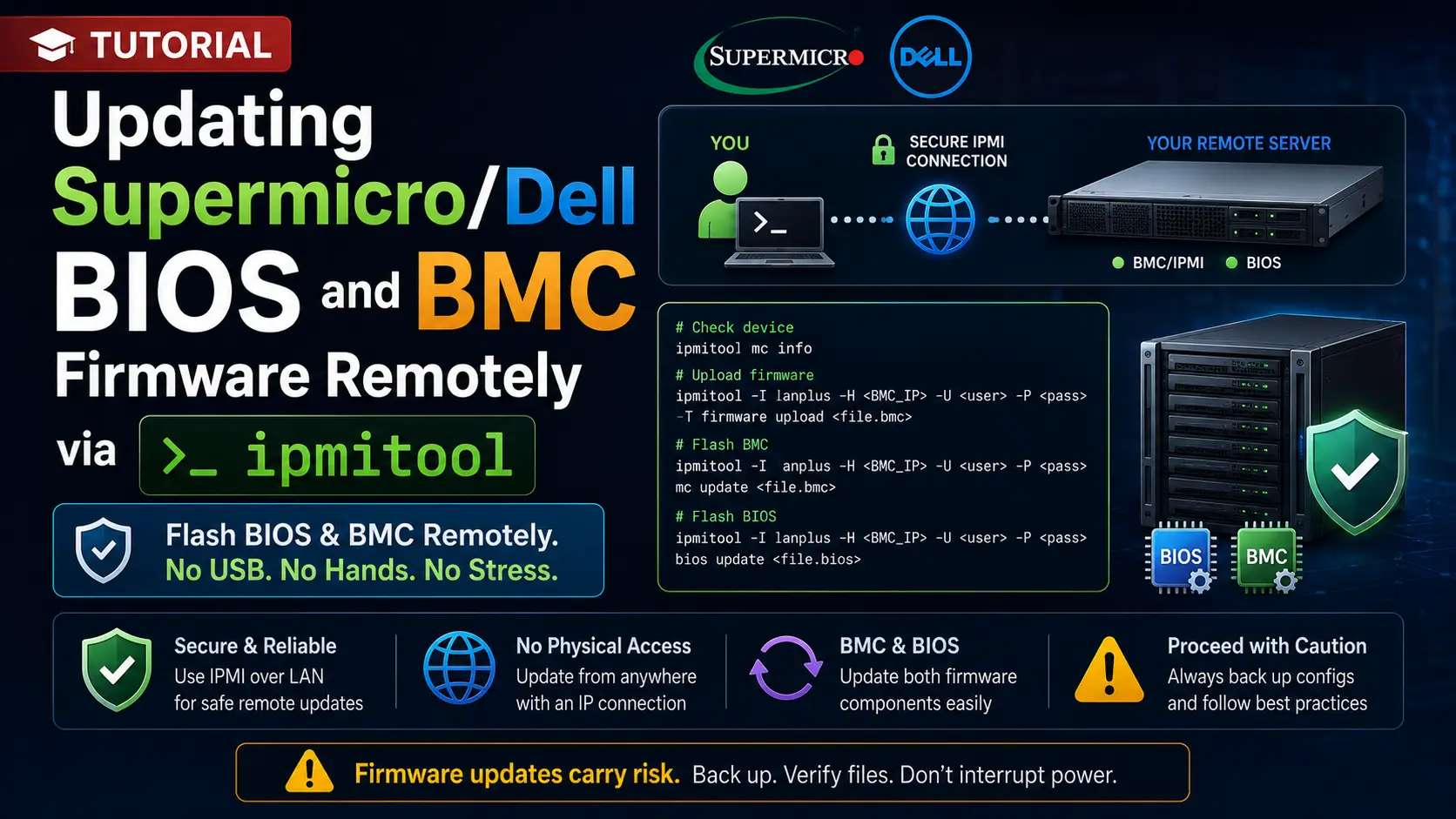
There are few things in a system administrator's career that induce as much anxiety as typing an update command into a terminal for a server sitting in a dark data center 3,000 miles away, pressing Enter, and watching your SSH session disconnect.
Updating bare-metal firmware remotely is terrifying. If a standard software update fails, you can usually reboot into a rescue kernel. If a motherboard BIOS or Baseboard Management Controller (BMC) flash fails, the server is effectively "bricked." You will be forced to pay exorbitant remote-hands fees to a data center technician—or worse, replace the motherboard entirely.
However, running outdated firmware is no longer an option. With the rise of deep hardware vulnerabilities, patching your BIOS and IPMI interfaces is a critical security requirement.
In this comprehensive tutorial, we are going to remove the terror from remote firmware upgrades. We will walk step-by-step through securely flashing your BMC and BIOS using native Linux command-line tools like ipmitool, bypassing the need for physical USB drives or clunky web interfaces.
What You'll Learn
Understanding the BMC vs. BIOS Architecture
Prerequisites and Pre-Flight Checks
Installing and Configuring ipmitool
Backing Up the Current BMC Configuration
Flashing the BMC/IPMI Firmware Remotely
Flashing the Motherboard BIOS Remotely
Verifying the Upgrade and Post-Flight Cleanup
Emergency Recovery Strategies
Understanding the BMC vs. BIOS Architecture
Before we start sending payloads to the motherboard, you must understand the distinction between the two components we are updating.
The BMC (Baseboard Management Controller): This is a tiny, independent computer physically soldered onto your motherboard. It has its own processor, its own RAM, and its own network interface (the IPMI port). It runs even when your main server is powered off. Updating the BMC rarely takes your main server offline, but it temporarily drops your remote management connection.
The BIOS / UEFI: This firmware initializes your primary CPU, RAM, and PCIe devices. You cannot update the BIOS while it is actively being used by the operating system.
The Golden Rule: Always update the BMC/IPMI firmware first. Modern BIOS updates often require updated instruction sets from the BMC to flash correctly. If you flash a new BIOS while running an ancient BMC, the flash may fail, or the server may refuse to POST (Power-On Self-Test).
Prerequisites and Pre-Flight Checks
Do not skip this section. Flashing firmware over SSH is safe only if you respect the rules of the road.
-
Verify Your Motherboard Model: Flashing the firmware for a Supermicro X11SSH-F onto an X11SSM-F will destroy the board. Run
sudo dmidecode -t baseboardto get the exact make and model of your server. -
Verify Checksums: When you download the .bin, .ima, or .hpm firmware file from the vendor's website to your server, you must verify the SHA256 checksum. If a single byte was dropped during the wget download, flashing it will brick the system.
bashsha256sum firmware_file.img -
Power Stability: Do not do this during a thunderstorm, and ensure your dedicated server is backed by dual A/B power feeds or a reliable UPS.
-
Download the Release Notes: Some firmware versions cannot be skipped. For example, you may not be able to flash from v1.0 directly to v3.0. You may need to flash v2.0 first. Read the vendor's release notes carefully.
Installing and Configuring ipmitool
We will use ipmitool, an open-source utility that interfaces directly with the BMC via the Linux kernel.
1. Install the Package
For Ubuntu/Debian:
sudo apt update && sudo apt install ipmitool -y
For RHEL/CentOS/AlmaLinux:
sudo dnf install ipmitool -y
2. Load the Kernel Modules
For ipmitool to talk to the motherboard from within the running Linux OS (known as the OpenIPMI interface), the specific kernel modules must be loaded.
sudo modprobe ipmi_devintf
sudo modprobe ipmi_si
3. Verify Local Communication
Run a simple command to ensure the OS can talk to the BMC:
sudo ipmitool mc info
You should see output displaying your current Device ID, Firmware Revision, and IPMI Version. Take note of your Firmware Revision so you can verify the upgrade later.
Backing Up the Current BMC Configuration
When you flash the BMC, it is possible for the network settings to revert to DHCP or factory defaults. If you rely on a static IP to access your IPMI web interface, losing this config means losing out-of-band access.
Print your current LAN configuration and save it to a file:
sudo ipmitool lan print 1 > /root/ipmi_lan_backup.txt
(Note: Supermicro usually uses Channel 1 for the dedicated IPMI port, while Dell might use Channel 1 or 8. If Channel 1 throws an error, try 8).
Verify your IPMI users. Ensure you know the username and password, as active sessions will be terminated during the flash:
sudo ipmitool user list 1
Flashing the BMC/IPMI Firmware Remotely
Most modern servers (Supermicro X10/X11/X12 generation and newer Dells) support the HPM.1 standard, which allows for safe, modular firmware upgrades over the IPMI interface.
(Note: We are running these commands locally over SSH using the OpenIPMI driver, not over the network via LANPLUS, which is much safer because a brief network hiccup won't interrupt the payload transfer).
1. Check the Firmware Payload
Before flashing, ask ipmitool to validate the firmware image file. This ensures the file matches the target hardware.
sudo ipmitool hpm check BMC_Firmware_File.hpm
If the tool returns a mismatch error, stop immediately. You have downloaded the wrong firmware for your motherboard.
2. Execute the Flash
If the check passes, initiate the upgrade. We use the force flag to bypass unnecessary component checks, but only do this if Step 1 was flawless.
sudo ipmitool hpm upgrade BMC_Firmware_File.hpm force
3. What to Expect
The terminal will show a progress bar. Do not touch your keyboard. Do not background the task. Do not close your SSH client.
The process will erase the old flash blocks and write the new ones. This takes roughly 3 to 5 minutes.
4. Cold Reset the BMC
Once the terminal returns "Upgrade successful", the new firmware is sitting in memory, but the BMC processor is still running the old code. You must restart the BMC.
sudo ipmitool mc reset cold
Note: This will NOT reboot your Linux server. It only reboots the tiny management chip. Your SSH session will remain active, but your web IPMI interface will drop offline for about 2 minutes.
Flashing the Motherboard BIOS Remotely
While ipmitool perfectly handles the BMC, flashing the primary motherboard BIOS is a different beast. Because the BIOS is locked while the OS is running, pure ipmitool cannot flash it natively without specialized vendor payload wrappers.
To safely flash the BIOS remotely, you must use the manufacturer's dedicated CLI tools, which leverage the IPMI interface in the background.
For Supermicro (Using SUM)
Supermicro provides the Supermicro Update Manager (SUM).
Download the SUM Linux package from Supermicro's enterprise portal and extract it on your server.
Upload your BIOS file (e.g.,
BIOS_X11SSH_123.bin) to the same directory.-
Run the out-of-band update command. Because we are local, we can use the Localhost interface:
bashsudo ./sum -c UpdateBios --file BIOS_X11SSH_123.bin -
The system will stage the BIOS. You must now reboot the Linux OS.
bashsudo reboot
During the reboot cycle, the BMC will intercept the boot process, apply the new BIOS to the EEPROM chip, and then boot back into Linux.
For Dell iDRAC (Using racadm)
Dell abstracts BIOS and firmware updates through the iDRAC Lifecycle Controller using the racadm command-line tool.
Install Dell's
srvadmin-idracadm8orsrvadmin-idracadm7packages via your package manager.Upload the Dell BIOS update
.exeor.BINpayload to your Linux server.-
Push the update to the iDRAC controller:
bashsudo racadm update -f BIOS_File.BIN -
Check the job queue to ensure it staged correctly:
bashsudo racadm jobqueue view -
Gracefully reboot your Linux server to allow the Lifecycle Controller to apply the BIOS flash:
bashsudo reboot
Verifying the Upgrade and Post-Flight Cleanup
Once the server comes back online and you have re-established your SSH session, it is time to verify that your sweaty-palm efforts were successful.
1. Verify the BMC
Run the info command again:
sudo ipmitool mc info
Look at the Firmware Revision. It should now reflect the updated version you flashed.
2. Verify the BIOS
You can query the motherboard's DMI tables to check the BIOS version without rebooting into the setup screen:
sudo dmidecode -t bios
Look for the Version: and Release Date: fields to confirm the new BIOS is actively running.
3. Clean Up
Delete the firmware .bin and .hpm files from your Linux root directory. Leaving massive firmware payloads sitting in /root/ is a bad housekeeping practice and a potential security risk if a malicious actor gains access to your server.
Emergency Recovery Strategies
If the absolute worst happens—your SSH session drops, the server reboots, and it never comes back online (a "brick" scenario)—you still have options before writing off the motherboard.
1. The iDRAC / IPMI Dedicated Port Failover
If you updated the BMC and the shared LAN interface stopped working, the configuration may have reverted to the Dedicated IPMI port. If you are in a data center, ask remote hands to move the network cable from the shared eth0 port to the dedicated IPMI management port and check for a DHCP lease.
2. IPMI Web GUI Recovery
If the BIOS flash failed, many modern enterprise motherboards have a dual-BIOS or BIOS recovery feature built directly into the BMC.
Log into the IPMI Web Interface (via your browser).
Navigate to Maintenance -> BIOS Update.
Upload the original, known-working BIOS .bin file directly through the web interface.
The BMC will forcefully overwrite the corrupted BIOS chip, allowing the server to POST again.
3. The Physical CMOS Clear
If the server turns on, fans spin at 100%, but nothing outputs to the screen (and IPMI is unreachable), you have a severe hardware lock. You must instruct data center remote hands to:
Unplug both power cables from the power supplies.
Remove the CMOS battery from the motherboard.
Short the JBT1 (Clear CMOS) jumper pads with a flathead screwdriver for 10 seconds.
Replace the battery and power the server back on. This resets the NVRAM and forces the BMC and BIOS to re-initialize from scratch.
Summary
Remotely flashing bare-metal firmware is an advanced system administration task that commands respect. By utilizing the OpenIPMI interface and native Linux tools like ipmitool, SUM, and racadm, you remove the unpredictability of browser-based Java applets and USB drives.
Always remember the golden sequence: verify your exact hardware model, strictly check the SHA256 hashes of your payloads, back up your LAN configurations, and always flash the BMC before the BIOS. Following this disciplined approach ensures your dedicated servers remain patched, secure, and fully operational.